
Saving animation
To save an animation of your 3D text:
 Saving an animation may take a long time.
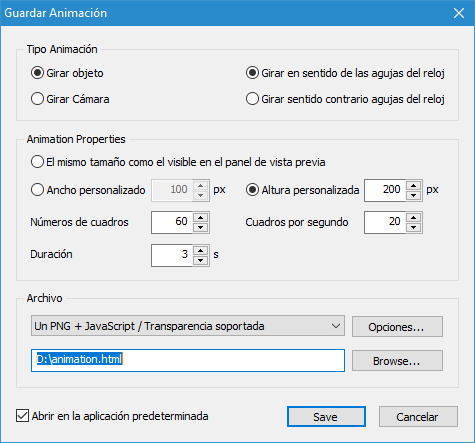
You can configure the following animation parameters.
Animation type - defines motion parameters:
Animation size - defines technical parameters:
Animation file - defines the file format and file name:
Open animation in default app - enable this option if you want to open the animation for viewing in the default app after saving.
- On the File menu, select Save Animation....
- In the dialog that appears, change the parameters and click Save.
Saving an animation may take a long time.
You can configure the following animation parameters.
Animation type - defines motion parameters:
- Rotate scene - the scene rotates in front of a fixed camera.
- Rotate camera - the camera rotates around a fixed scene.
- Rotate clockwise - the scene or camera rotates clockwise.
- Rotate counterclockwise - the scene or camera rotates counterclockwise.
Animation size - defines technical parameters:
- The same size as visible in the preview pane - the size is calculated automatically based on the current display scale.
- Custom resolution - lets you set the exact width and/or height in pixels. If only one value is set, the second one is calculated automatically to preserve image proportions.
- Duration - total animation duration in seconds.
- Frames per second - defines animation smoothness.
- Number of frames - total number of frames in the animation.
Animation file - defines the file format and file name:
- File format:
HTML code with CSS or JavaScript and a PNG image for use on a web page (.html + .png)
Animated WebP (.webp)
Animated PNG (.apng)
Animated 256-color GIF (.gif)
Shockwave Flash (.swf)
AVI video (.avi)
MP4 video (.mp4)
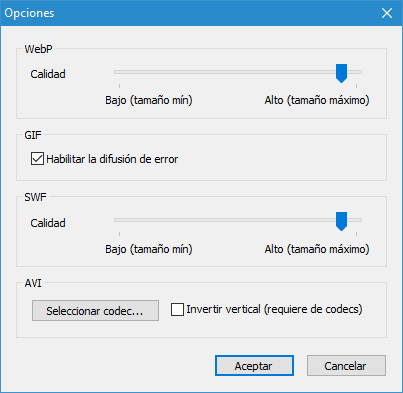
Click the Settings... button to set quality, choose a codec, and change other format settings.
- File name - click the Browse... button and select the folder and file where the animation will be saved.
Open animation in default app - enable this option if you want to open the animation for viewing in the default app after saving.
Temas relacionados
3D Text Commander